Connect Telegram Ads
Connect a Telegram Ads session to your personal API access. You can then read the accounts available to that session through the API and MCP.
You need Chrome, a signed-in Telegram Ads account, and a personal API token issued by your workspace operator. A Telemetr.io analytics API key is a different credential and will not work here.
Install the extension
- Download TG Ads Assistant — Connections Dev.
- Unzip the downloaded file into a folder you will keep on your computer.
- Open
chrome://extensionsand turn on Developer mode in the upper-right corner. - Click Load unpacked, then choose the extracted folder containing
manifest.json. - Open Chrome's extensions menu and pin TG Ads Assistant (Connections Dev).
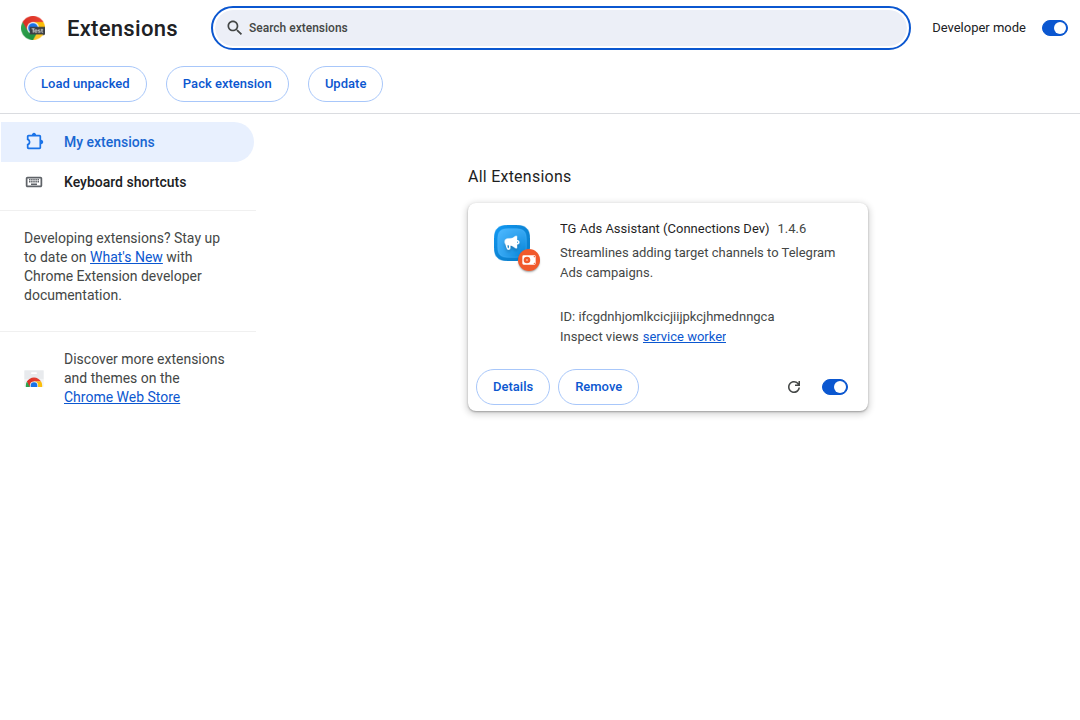
The development package is loaded unpacked. Screenshots use a disposable browser profile.
The package has extension ID ifcgdnhjomlkcicjiijpkcjhmednngca. This release is a development package, not a Chrome Web Store listing.
Connect your session
- Sign in at ads.telegram.org.
- Open the extension using its toolbar icon. The connection controls must run in the extension popup.
- Set API origin to
https://tgads.tlmtr.dev— no path or trailing slash. - Paste your personal access token, then enter a New connection name such as
Demo workspace. - Click Connect Telegram Ads. Approve the requested Chrome permissions for Telegram Ads cookies and the selected API host.
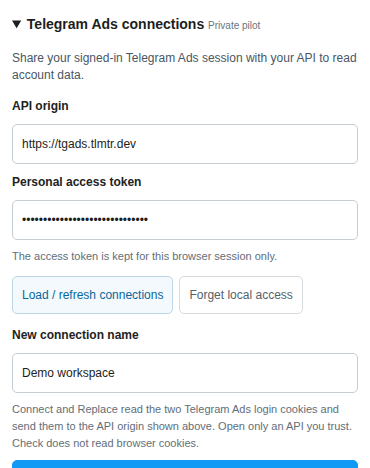
Demonstration screenshot. The masked token and browser cookies are synthetic.
Connect reads exactly two session cookies, stel_token and stel_adowner, including their HttpOnly values, and sends them to the API. The API validates the session before saving the connection. You do not need to copy cookies manually or keep a remote browser running.
Confirm the connection
An active connection and its account list appear after success. Click Check to validate the saved session again.
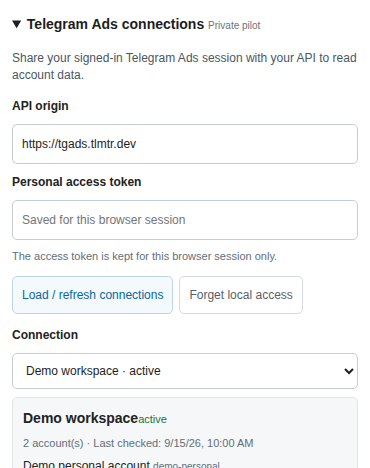
Example account names and IDs are demonstration data, not customer accounts.
The personal API token lasts only for the current browser session in extension storage. If Chrome restarts or the extension reloads, paste the token again and click Load / refresh connections. The connection remains on the server.
Make your first request
Set TGADS_TOKEN in your local environment using your own secret-management workflow. Do not substitute Telegram cookies for this token.
curl --fail-with-body https://tgads.tlmtr.dev/v1/connections \
  -H "Authorization: Bearer $TGADS_TOKEN"
The response is an object with a connections array. Copy the id of your selected connection into CONNECTION_ID, then read its Telegram Ads accounts:
curl --fail-with-body \
  "https://tgads.tlmtr.dev/v1/connections/$CONNECTION_ID/api/accounts" \
  -H "Authorization: Bearer $TGADS_TOKEN"
The REST accounts response is an array. Use an account's returned id in subsequent requests. A connection ID is a UUID; an account ID identifies a Telegram Ads account. They are not interchangeable.
Continue with API examples or MCP setup.
Refresh or disconnect
| Button | What it does |
|---|---|
| Check | Validates the cookies already saved on the server. It does not read browser cookies. |
| Replace cookies | Reads your current browser session and replaces the selected connection's cookies after successful validation. |
| Disconnect | Removes the stored cookies for the selected connection. It does not delete Telegram campaigns or sign you out of Telegram. |
| Forget local access | Removes the extension's local access and preferences. It does not disconnect the server-side connection. |
If your Telegram session expires, sign in again and choose Replace cookies. If the connection is disconnected, create a new connection.